Failed photos return their credits
Each photo with Santa costs 8 credits. If a generation fails, those credits return to your balance automatically. This is a credit return, not a cash refund.
Upload a photo of your own room, with or without people. Choose Leaving gifts, In your photo or At the fireplace. Add Santa and his scene props while keeping your room, people and pets as they are. No prompt to write.
Upload your photo
Drop a photo here, or click to choose. JPG or PNG, up to 10 MB.
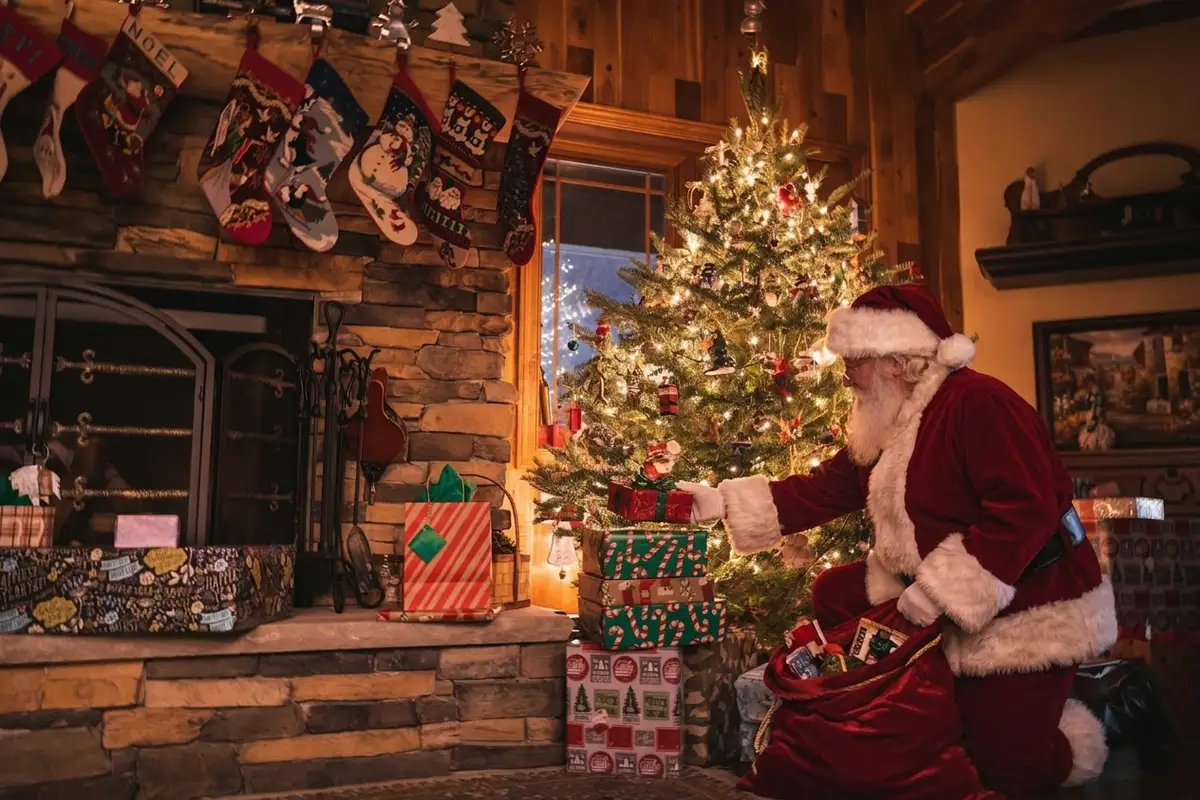 Example
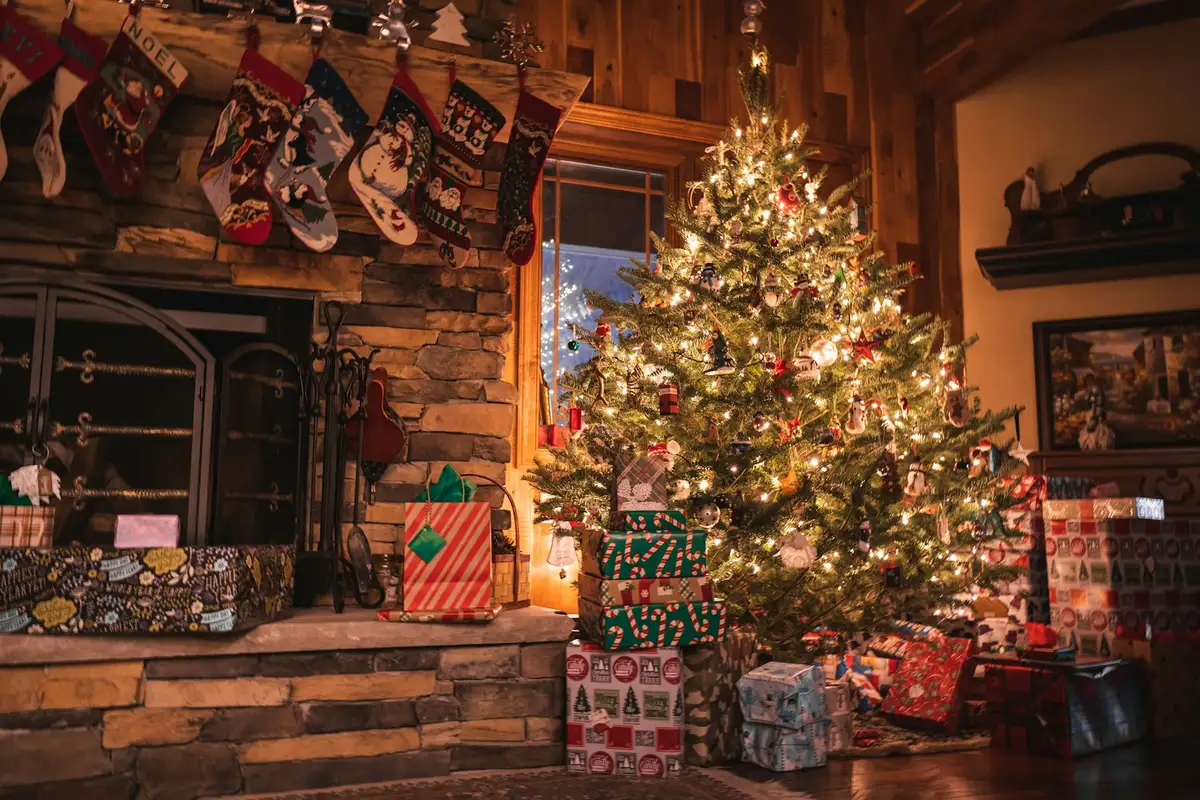
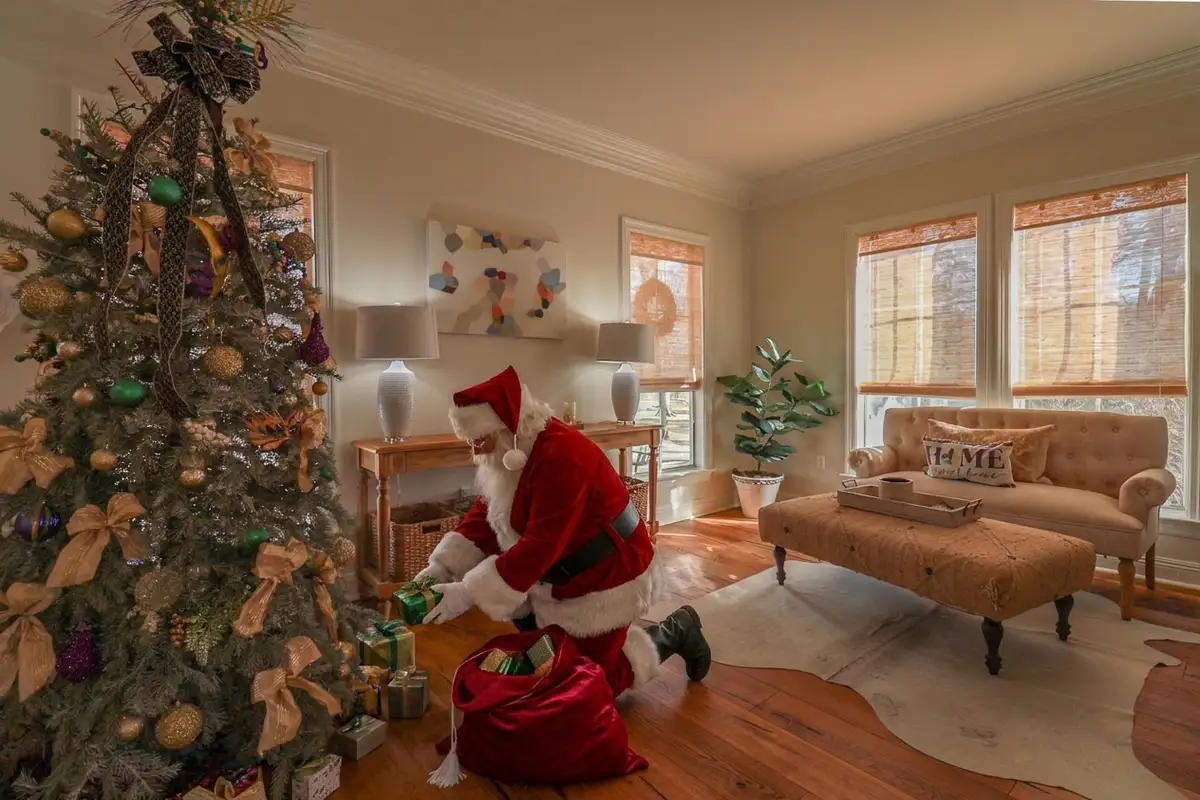 Example
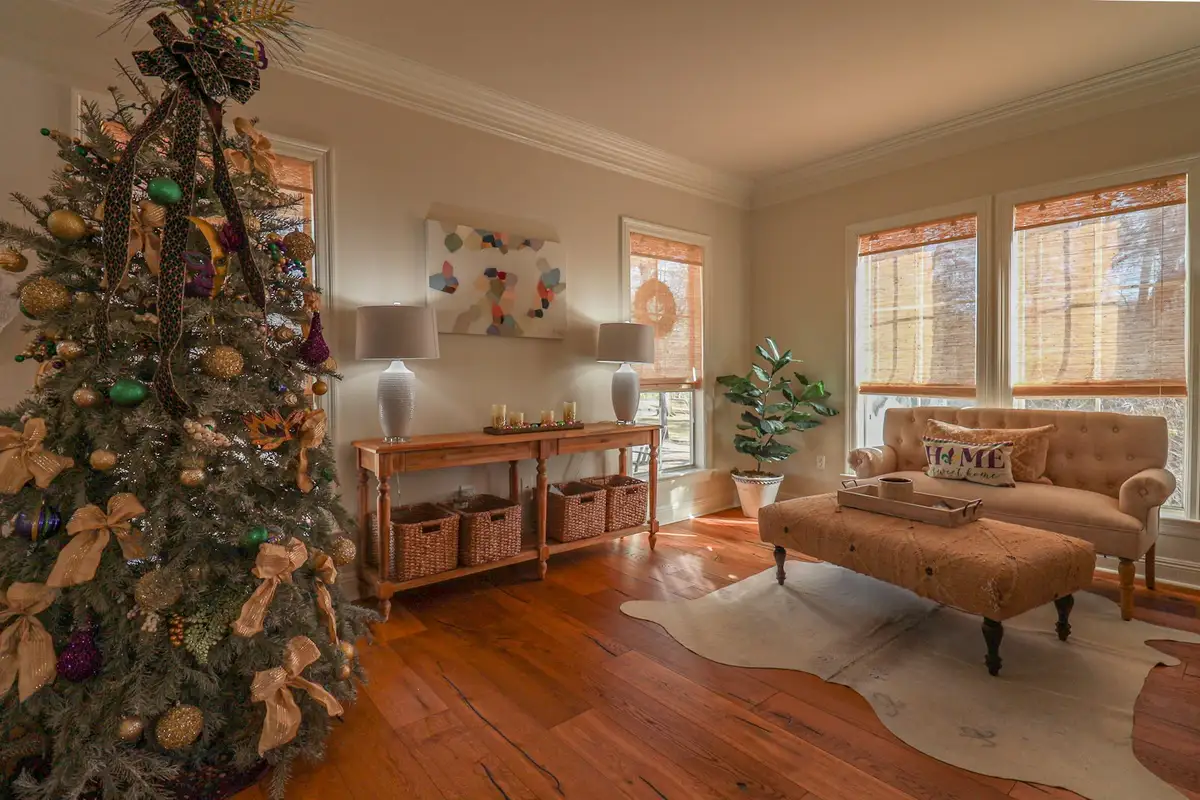
 Example
 Example
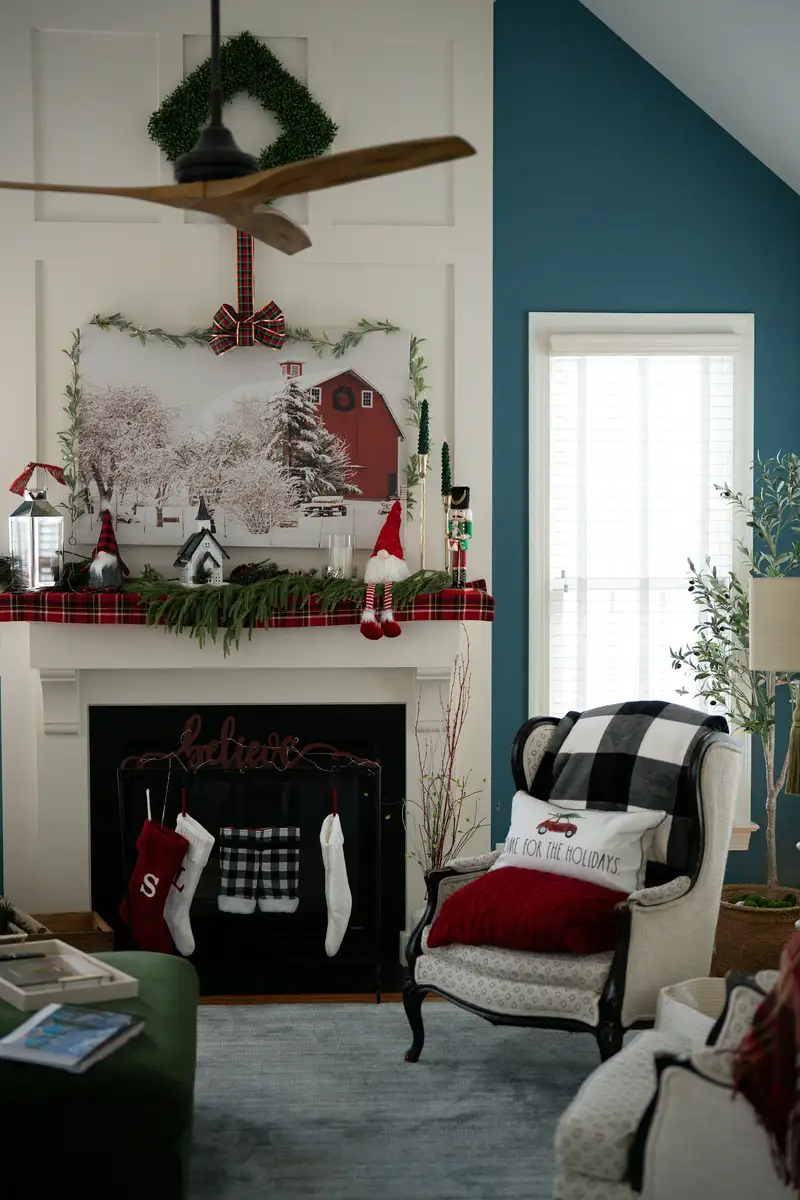
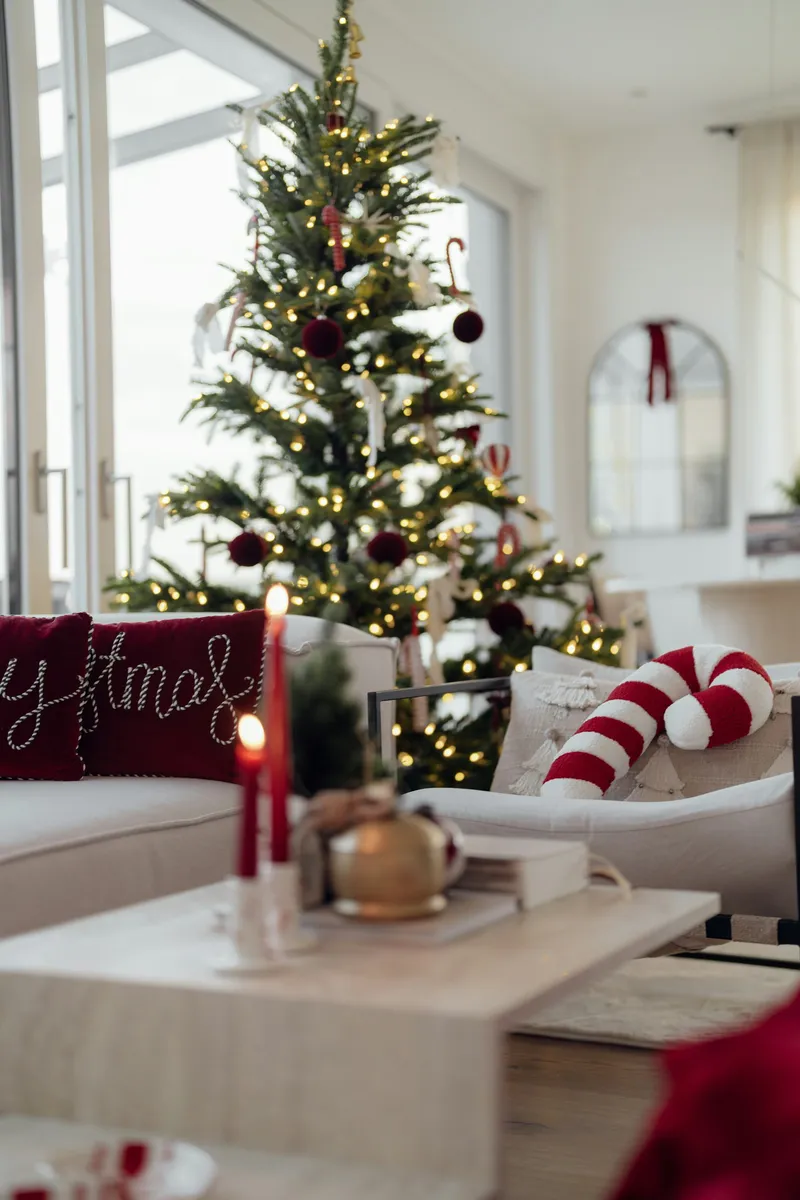
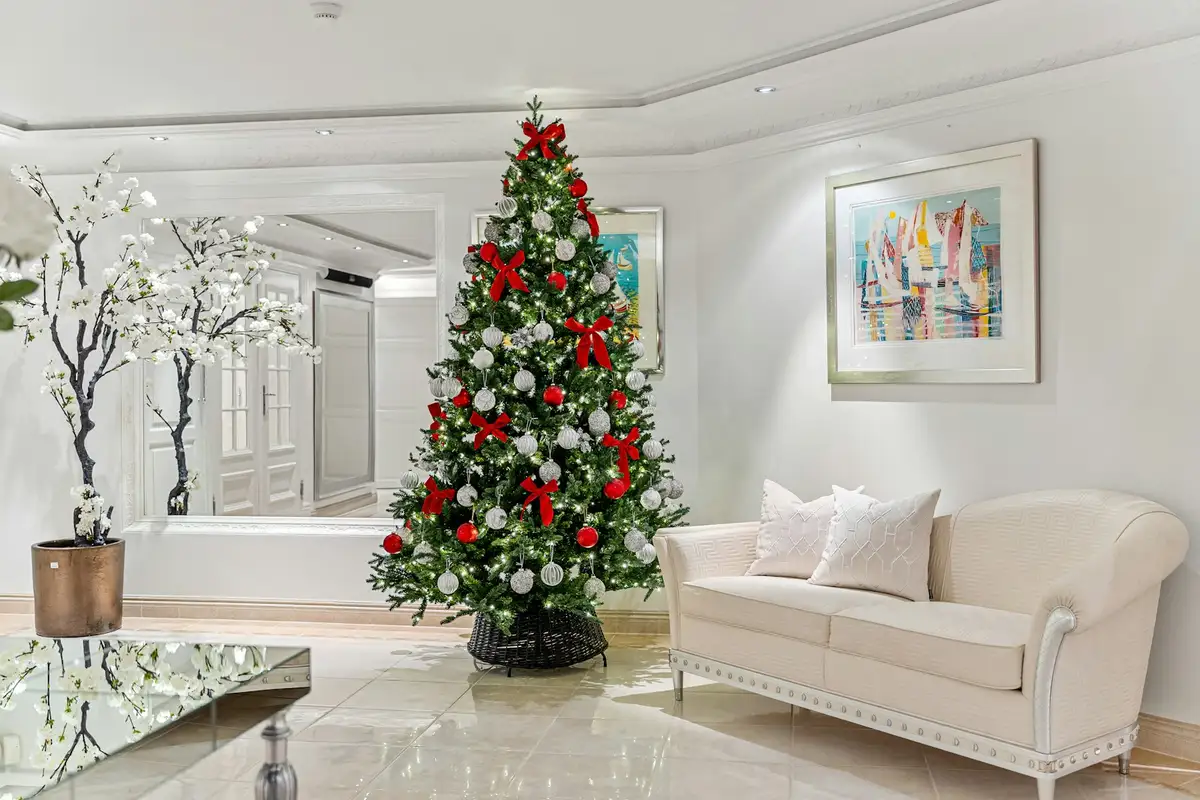
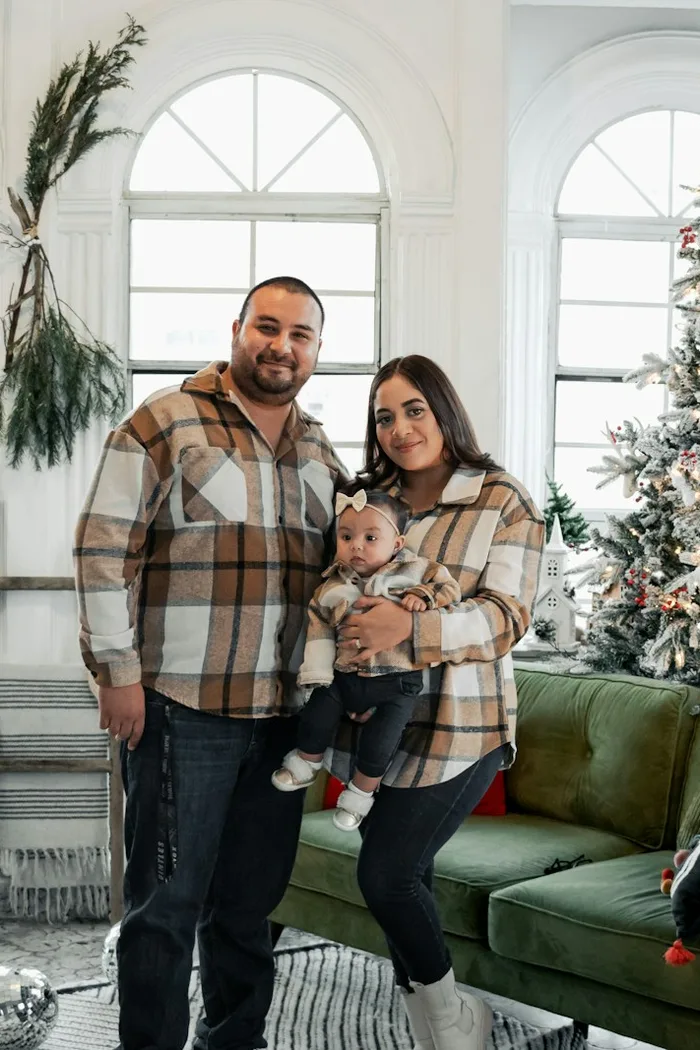
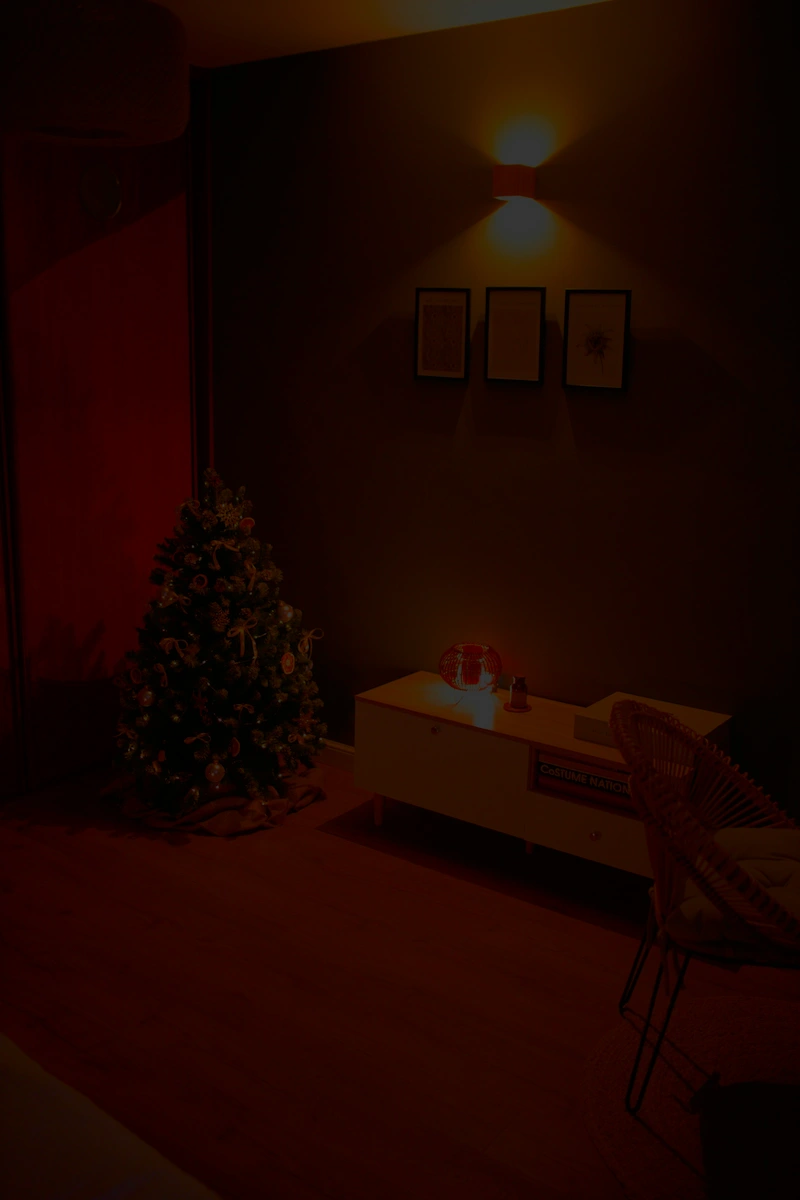
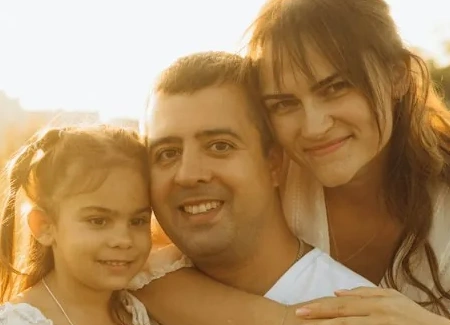
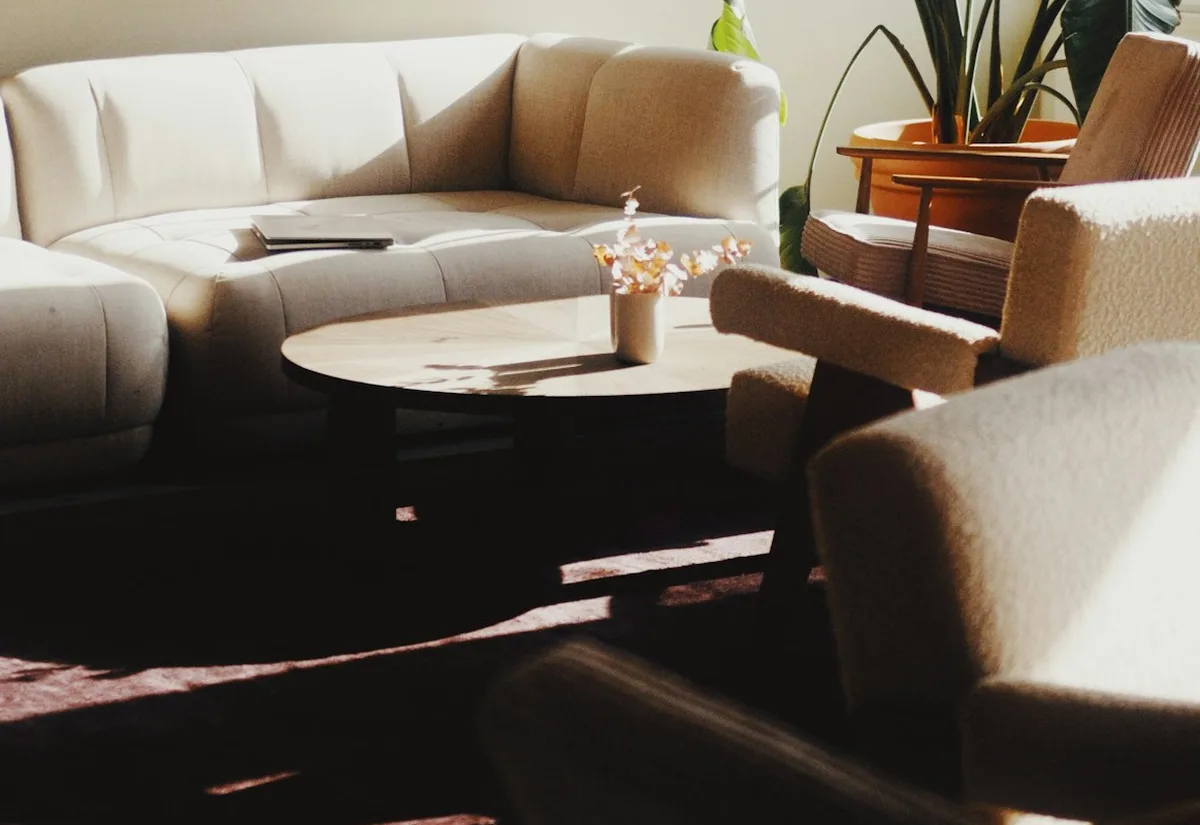
Use a photo of your own room or porch, with or without people or pets. Confirm you have permission to use it. Your result is private by default.
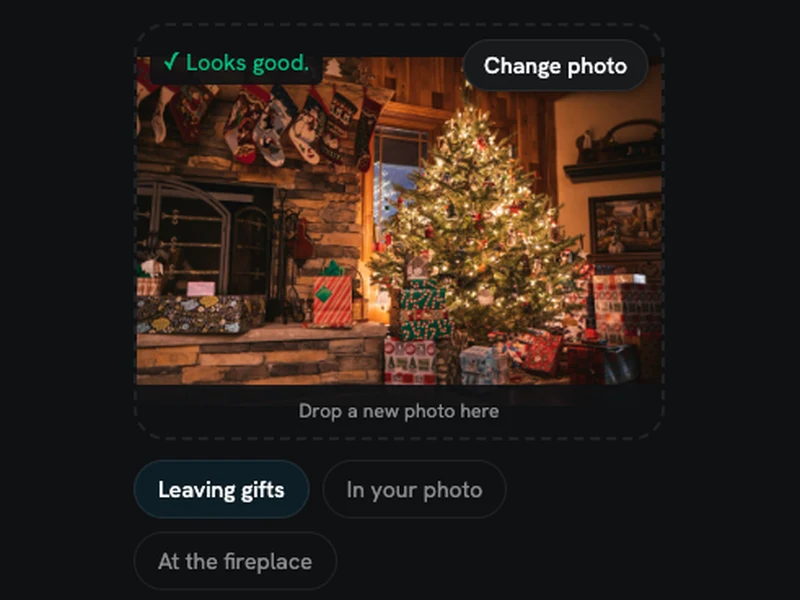
Choose Leaving gifts, In your photo or At the fireplace, then press Generate. Leaving gifts is selected first. You do not need to write a prompt.
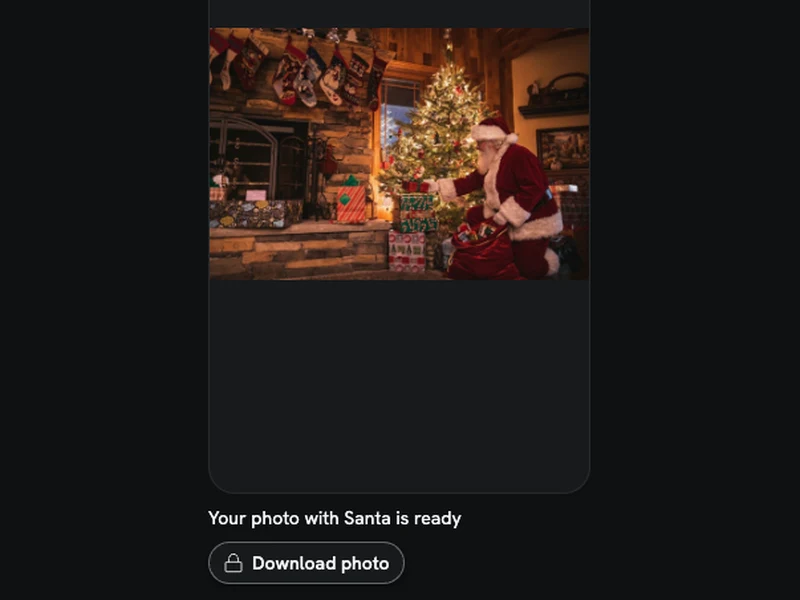
Find your photo here and in My Creations. Downloading needs a Starter Pack or a paid plan. Results are saved for 14 days, so download any you want to keep.
Each photo with Santa costs 8 credits. If a generation fails, those credits return to your balance automatically. This is a credit return, not a cash refund.
A $6.99 Starter Pack adds 270 credits, enough for 33 photos, and unlocks downloads for 365 days. There is nothing to cancel.
Your result is private by default and stays in My Creations for 14 days. Download it before that time is up. Ask us to delete your upload or results sooner and we do it within 30 days. We do not use uploads to train AI models.
You must be an adult with the right to use the photo. Adults in it must agree, and a parent or guardian must agree for any child. No celebrities. Every result is AI-generated.
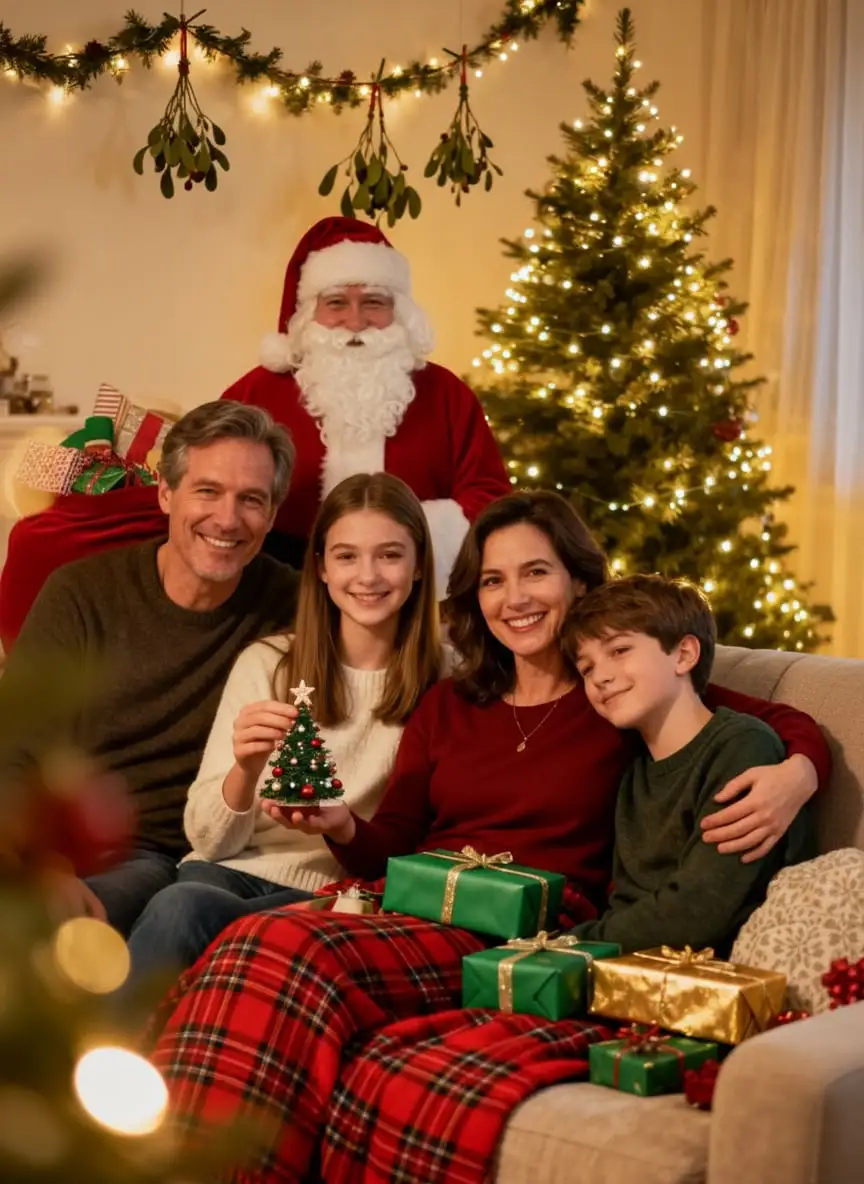
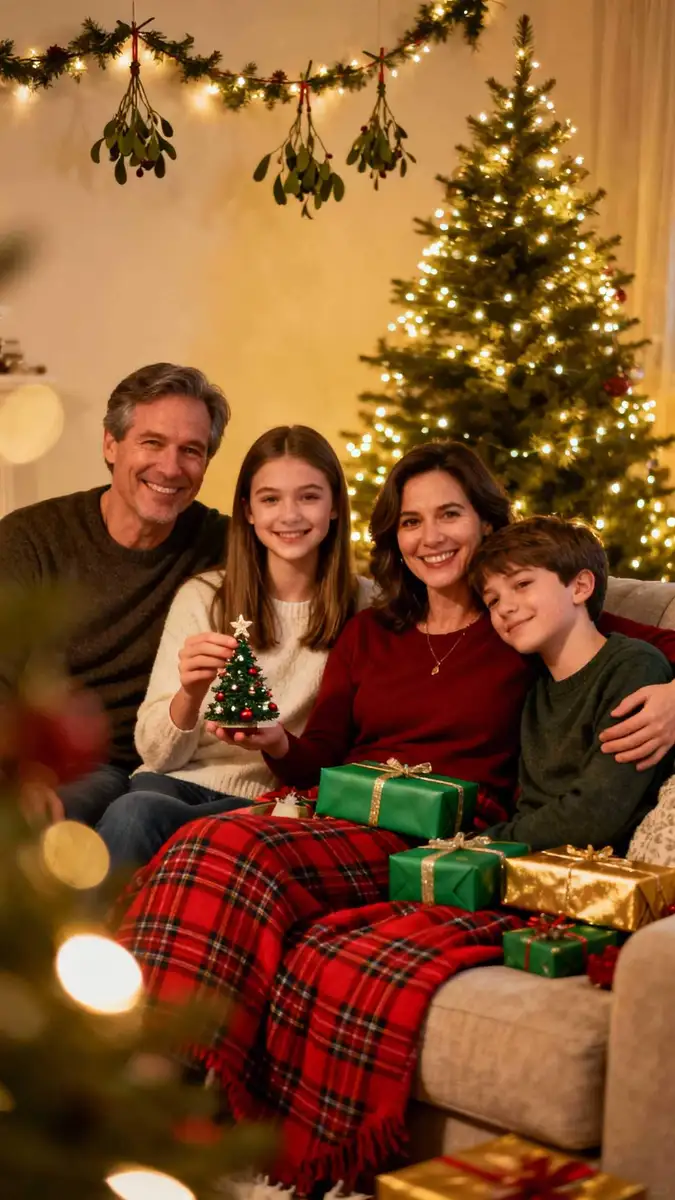
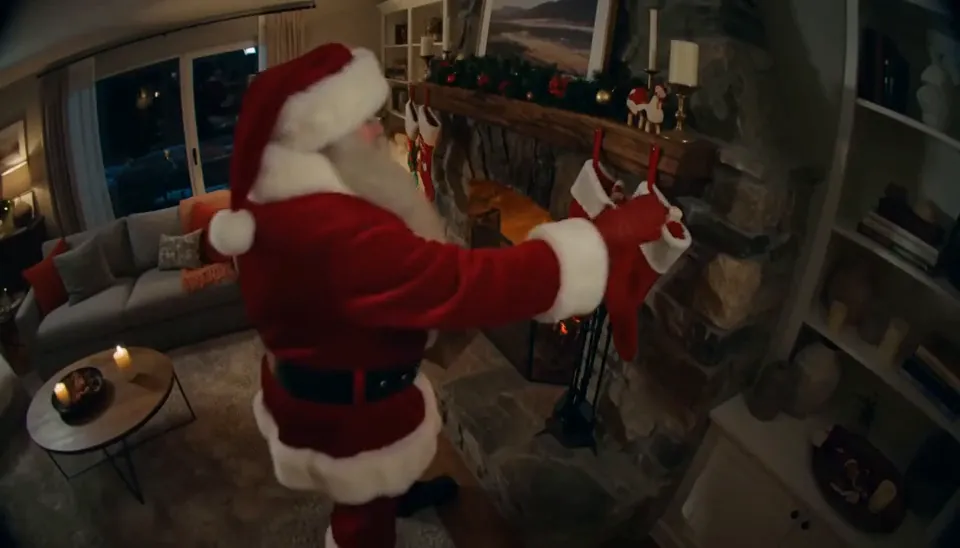
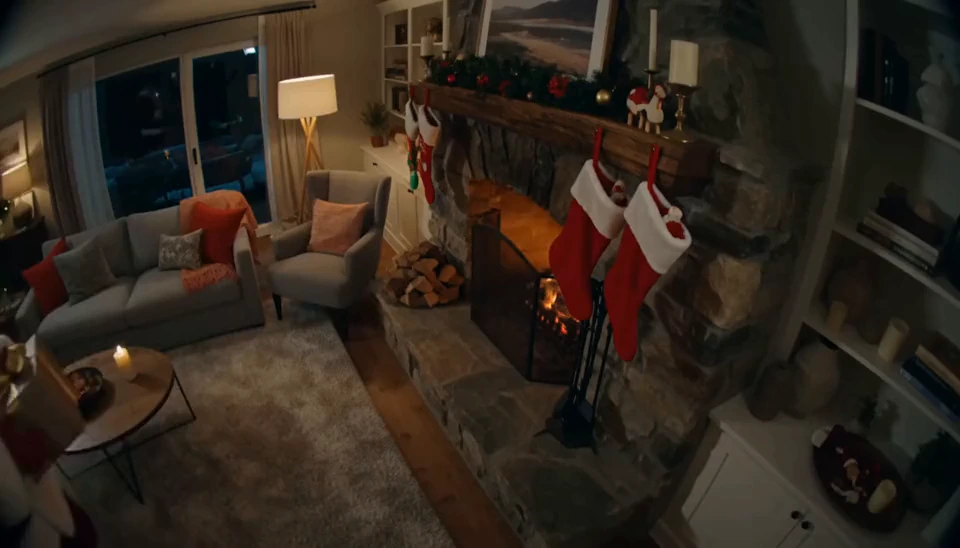
Choose one of 3 scenes. Leaving gifts places Santa beside an existing Christmas tree with presents and his sack. With no tree, he uses an open spot on the floor; on a porch or outdoors, he leaves gifts at the door. In your photo places him behind or beside your group, smiling at the camera without covering faces. With nobody in the photo, he stands in an open spot. At the fireplace shows him hanging a red stocking on your mantel, or on a door handle or chair back if there is no fireplace. The instructions ask to preserve your room, furniture, decorations, framing and lighting, and keep every existing person and pet unchanged. Only Santa and the props for your chosen scene are added; no new tree or fireplace is requested. This is an AI edit, so small details can still differ. You get one image at 1K, with an aspect ratio that follows your original photo.
The 3 scenes, room photos with or without people, credits and privacy.
Leaving gifts shows Santa kneeling to put down wrapped presents, with his open sack beside him. In your photo adds him to your group, or standing in an open spot if nobody is there. At the fireplace shows him hanging a red stocking, with his sack at his feet. Choose one scene per generation. Leaving gifts is the default.
Yes. Upload a clear photo of your own room or porch, with or without people or pets. There is no face-detection requirement. Leave some space for Santa and use enough light to show the room. This page uses one photo; it does not merge separate photos.
The instructions ask to keep your room, furniture, decorations, camera angle, framing and lighting direction as they are. Existing people and pets should keep the same faces, clothes, poses and markings. Santa is the only added person, along with presents, a sack or a stocking as specified by your chosen scene. AI can still alter small details, so check the preview before using it.
No. For Leaving gifts, Santa uses an open floor area if there is no tree, or the door if the photo shows a porch or another outdoor space. For At the fireplace, he hangs the stocking on a door handle or chair back if there is no fireplace. The instructions do not ask to add a tree or a fireplace.
Each generation returns one image at 1K. Its aspect ratio follows your original photo, so portrait, landscape and square photos can all work. This is an AI edit, not a promise that every pixel will be unchanged.
Each generation costs 8 credits. New accounts get 10 free credits, enough for one preview. Free accounts can preview online; downloading needs a Starter Pack or a paid plan. A $6.99 Starter Pack adds 270 credits, enough for 33 photos, and unlocks downloads for 365 days. Failed generations return their credits; this is not a cash refund.
Results are private by default and saved in My Creations for 14 days. Download anything you want to keep within that time. If you ask us to delete an upload or result sooner, we do it within 30 days. We do not use your uploads to train AI models. Use photos you have the right to upload, with consent from adults shown and a parent or guardian for any child. No celebrities.
Add Santa to Photo adds Santa and the scene props to a still photo of your room. Christmas Filter applies a Santa hat, Santa outfit or Snowfall effect to the people, pets or setting already in your photo. Catch Santa makes a video of Santa in your space. Choose this page for a finished still photo with Santa added.